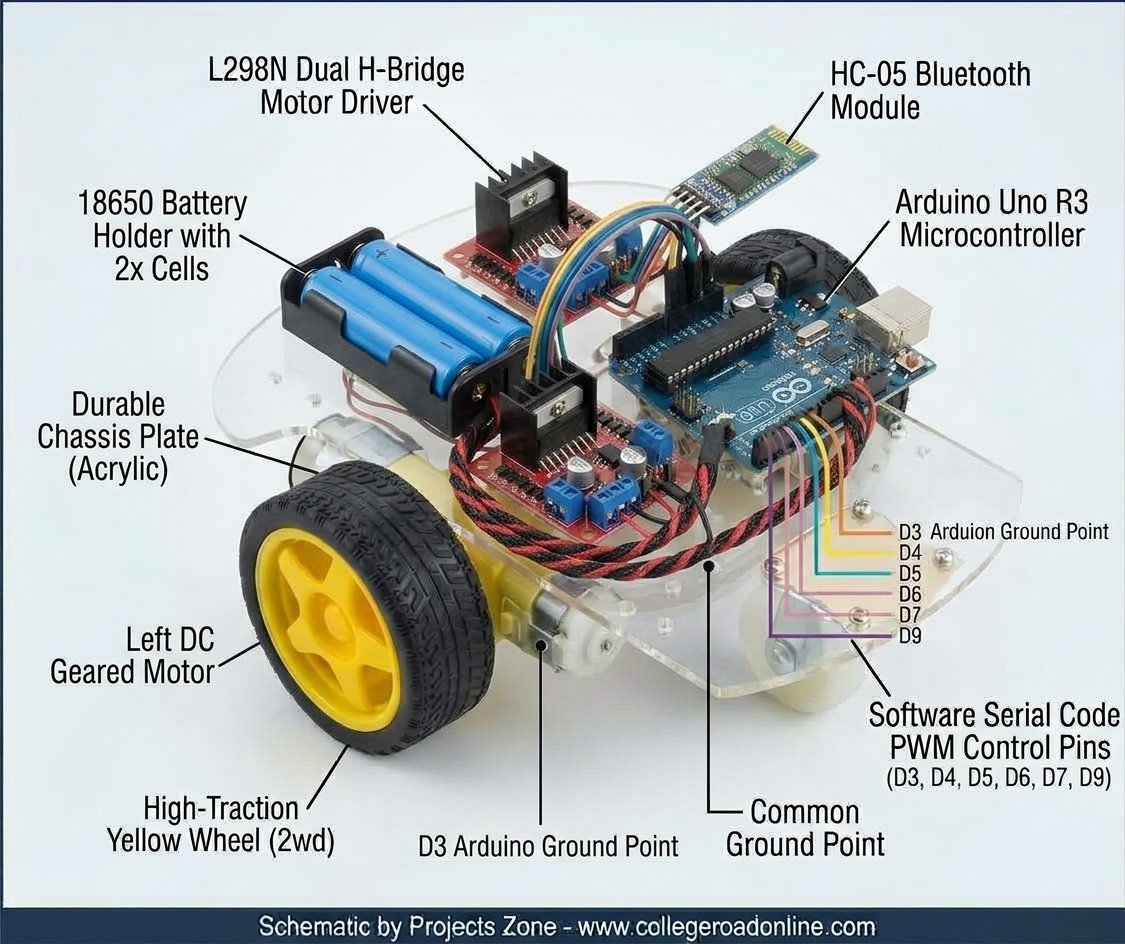
Building your own wireless mobile robot is one of the best ways to get started with microcontroller programming, motor drivers, and wireless communication. Whether you are building a prototype or working on a university engineering project, a smartphone-controlled smart car is a classic, rewarding project.
In this tutorial, we will walk you through how to build a 2WD Bluetooth Controlled Robot using an Arduino Uno, an HC-05 Bluetooth module, and an L298N motor driver.
Required Hardware Components
Before you begin wiring, make sure you have the following components ready (you can find all of these in our online store):
- 1 x Arduino Uno R3 Development Board
- 1 x 2WD Acrylic Smart Robot Car Chassis Kit (includes motors, wheels, and caster wheel)
- 1 x L298N Dual H-Bridge Motor Driver Module
- 1 x HC-05 Bluetooth Module
- 1 x Battery Holder (6V to 9V power supply)
- Jumper Wires (Male-to-Female and Male-to-Male)
Step 1: Mechanical Assembly
Assemble the Chassis: Start by removing the protective plastic film from the acrylic chassis plate. Mount the two dual-shaft DC motors to the underside using the provided mounting brackets and screws.
Attach Wheels: Push the yellow rubber wheels onto the motor shafts and secure them. Mount the universal caster wheel to the front slot of the chassis for balance.
Mount Electronics: Place your Arduino Uno, L298N motor driver, and battery pack onto the top acrylic plate using spacers or double-sided tape.
Step 2: Circuit Wiring & Connections
Proper wiring is critical to ensure your motors receive enough power without crashing the Arduino logic board.
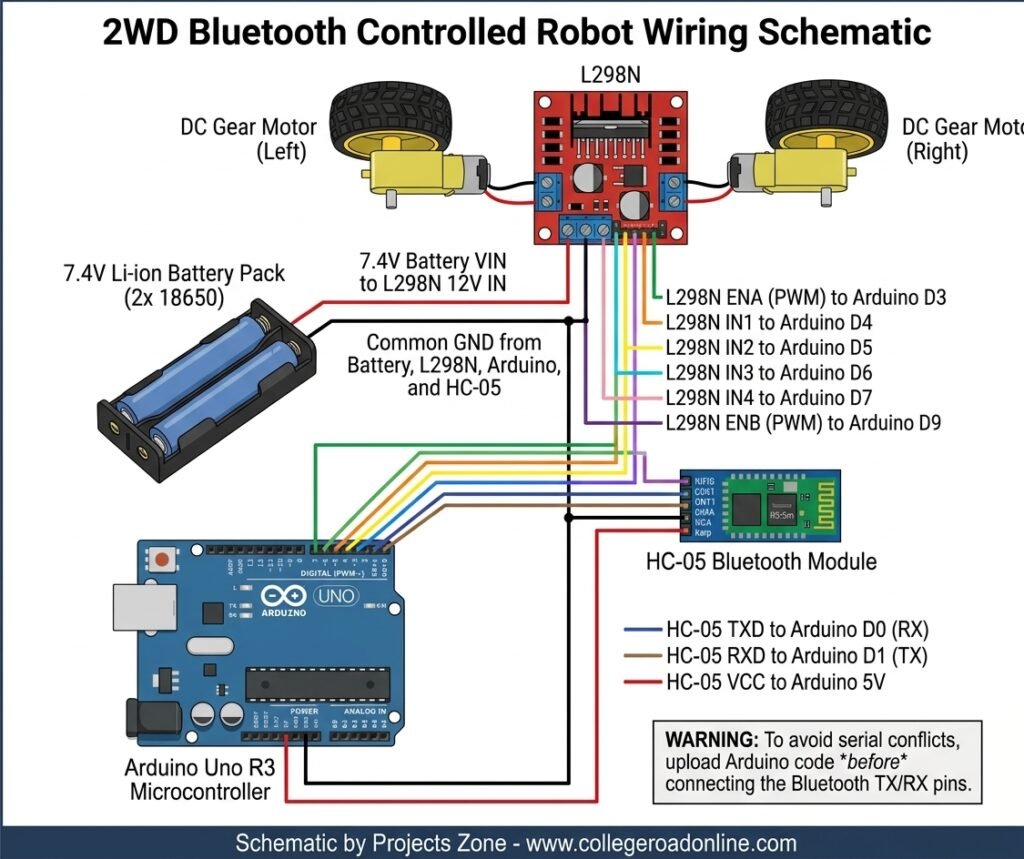
Motor Connections:
- Connect the Left Motor wires to
OUT1andOUT2on the L298N driver. - Connect the Right Motor wires to
OUT3andOUT4on the L298N driver.
L298N to Arduino Uno:
ENApin (Remove jumper, connect to Arduino Digital Pin3for PWM speed control)IN1pin Arduino Digital Pin4IN2pin Arduino Digital Pin5IN3pin Arduino Digital Pin6IN4pin Arduino Digital Pin7ENBpin (Remove jumper, connect to Arduino Digital Pin9for PWM speed control)GNDpin Connect to Arduino GND (Crucial: Share a common ground with the battery source!)
HC-05 Bluetooth Module to Arduino Uno:
VCCArduino 5V (Caution: Some HC-05 modules require 3.3V, check your module specifications)GNDArduino GNDTXDArduino Digital Pin0(RX) (Disconnect during code upload)RXDArduino Digital Pin1(TX) through a voltage divider or direct line depending on your board logic level.
Step 3: Arduino Sample Code
Copy and paste the code below into your Arduino IDE, select your board, and upload it via USB. (Remember to unplug the HC-05 RX/TX pins while uploading code to prevent serial conflict).
#include <SoftwareSerial.h>

// Define motor control pins
const int enA = 3;
const int in1 = 4;
const int in2 = 5;
const int in3 = 6;
const int in4 = 7;
const int enB = 9;

char incomingCommand; // Variable to store incoming Bluetooth data

void setup() {
  // Set all motor control pins to outputs
  pinMode(enA, OUTPUT);
  pinMode(enB, OUTPUT);
  pinMode(in1, OUTPUT);
  pinMode(in2, OUTPUT);
  pinMode(in3, OUTPUT);
  pinMode(in4, OUTPUT);

  // Set initial motor speed (0 - 255)
  analogWrite(enA, 200);
  analogWrite(enB, 200);

  // Start serial communication for Bluetooth
  Serial.begin(9600);
}

void loop() {
  if (Serial.available() > 0) {
    incomingCommand = Serial.read();

    // Control logic based on incoming character commands
    if (incomingCommand == 'F') {
      moveForward();
    }
    else if (incomingCommand == 'B') {
      moveBackward();
    }
    else if (incomingCommand == 'L') {
      turnLeft();
    }
    else if (incomingCommand == 'R') {
      turnRight();
    }
    else if (incomingCommand == 'S') {
      stopRobot();
    }
  }
}

void moveForward() {
  digitalWrite(in1, HIGH);
  digitalWrite(in2, LOW);
  digitalWrite(in3, HIGH);
  digitalWrite(in4, LOW);
}

void moveBackward() {
  digitalWrite(in1, LOW);
  digitalWrite(in2, HIGH);
  digitalWrite(in3, LOW);
  digitalWrite(in4, HIGH);
}

void turnLeft() {
  digitalWrite(in1, LOW);
  digitalWrite(in2, HIGH);
  digitalWrite(in3, HIGH);
  digitalWrite(in4, LOW);
}

void turnRight() {
  digitalWrite(in1, HIGH);
  digitalWrite(in2, LOW);
  digitalWrite(in3, LOW);
  digitalWrite(in4, HIGH);
}

void stopRobot() {
  digitalWrite(in1, LOW);
  digitalWrite(in2, LOW);
  digitalWrite(in3, LOW);
  digitalWrite(in4, LOW);
}
Step 4: Testing Your Robot
Power on your robot via the battery pack. The LED on your HC-05 module should be blinking, indicating it is ready to pair.
Open your smartphone Bluetooth settings, search for devices, and pair with the HC-05 (Default password is usually 1234 or 0000).
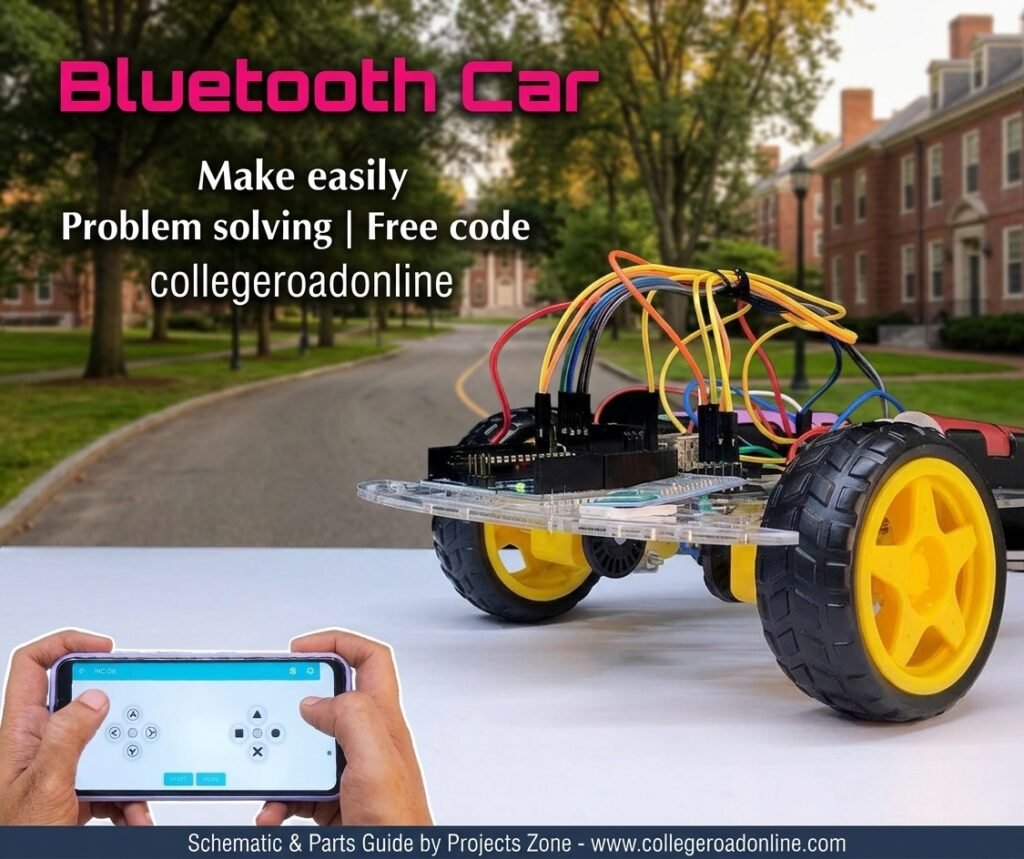
Download any standard Bluetooth RC Controller app from the Google Play Store.
Configure the app buttons to send text commands: F for Forward, B for Backward, L for Left, R for Right, and S for Stop.
Tap the buttons and watch your robot move wirelessly!
Ready to Build Yours?
If you need all these parts bundled together without hunting for individual components, check out our ready-to-ship 2WD Arduino Bluetooth Controlled Robot Kit (Unassembled) available right here on Collegeroadonline.com with fast delivery across Pakistan!